The new brief
PlayStation's next Share of the Week theme is Gathered, and the brief asks players to photograph characters together in a game of their choice. Submissions need both #PSshare and #PSBlog. The deadline is Wednesday, November 25, at 11:59 p.m. Pacific, which is November 26 at 07:59 UTC or 3:59 p.m. in Beijing. PlayStation may feature selected entries in its following gallery. [1]
The announcement closes out the previous Texture theme with six selections. Those images include a necklace from Saros, underwater stones in Ghost of Yōtei and a figure from Another World. The range offers a reason to look beyond a familiar hero portrait when planning the new shot. This week's subject is the group, so a useful first decision is what the characters appear to be doing together. [1]
Give the group a readable shape
Overlapping figures can make a group photograph difficult to read. As a starting point, look for a moment that puts the characters in distinct parts of the frame: companions might sit around a table, wait at a doorway or watch the same event. Their relationship should remain visible when the image shrinks to the size of a social-media thumbnail. These composition suggestions are editorial advice. PlayStation's announced theme does not add a requirement to arrange the group in any particular way.
A quick comparison can help. Players can save one wide frame that explains the setting and one closer frame that emphasizes expressions or gestures, then compare the two without zooming in. If the closer version removes the character who gives the scene its meaning, the wider image may work better. The same check applies to background detail: a bright sign or a large weapon can pull attention away from the people the photograph is meant to show.
Focus deserves a separate check in any game that offers depth-of-field controls. A shallow focus effect may make one face look sharp while turning a companion into an indistinct shape. Players can compare the effect with a less blurred version and decide which one communicates the group better. They can also inspect small gaps between heads and shoulders; a slight camera adjustment sometimes makes the figures easier to distinguish. The aim is a picture in which the viewer can understand the gathering without a lengthy caption explaining where everyone is standing.
Save the screenshot on PS5
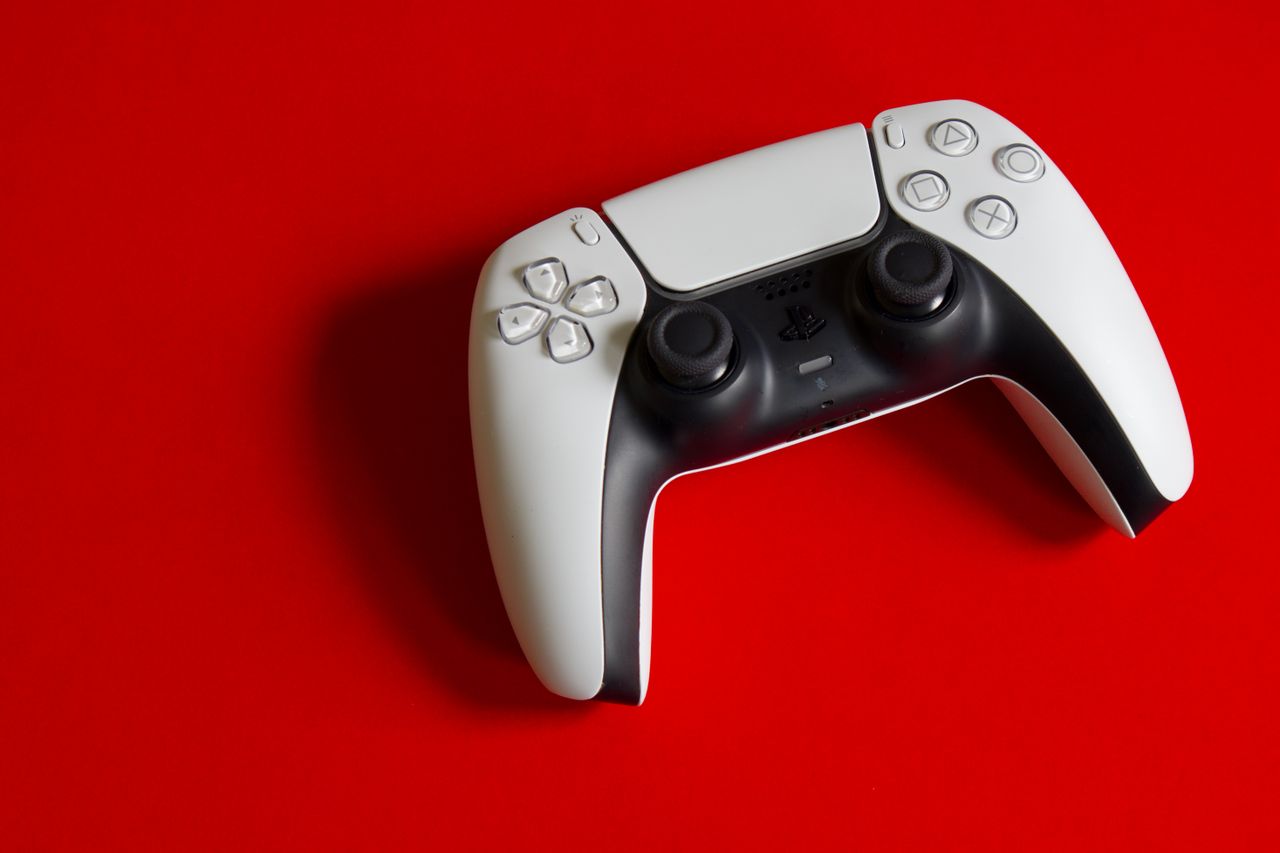
On PS5, the DualSense controller's Create button opens the capture menu, where Take Screenshot saves the current game screen. Sony's support guide also explains the shortcuts available under Settings, Captures and Broadcasts, then Captures. Players can choose Standard, Easy Screenshots or Easy Video Clips for the button's behavior. Checking that setting before a moving scene can prevent an unwanted menu from interrupting the moment. [2]
The same settings area controls screenshot file type and HDR options, while the recent-captures card provides a quick way to inspect saved results. Sony notes that some content cannot be captured. If a particular scene is restricted, players should choose another scene. Before leaving the game, they can open the saved image and check its edges, visible interface elements and the characters' faces. A saved file is a more reliable basis for that check than memory of what appeared on the television. [2]
Move a PS5 capture to a phone
PlayStation App can make the transfer straightforward. Sony says the console must be linked to the app; automatic uploads also require the appropriate rest-mode internet setting. Players can enable Captures in the app's Library and turn on Auto-Upload in the PS5 capture settings. Supported screenshots then remain available in the app for 14 days. The feature does not require a PlayStation Plus subscription. [3]
Players can also highlight an image in the console's Media Gallery, press Options and select Upload to PlayStation App. In the app, Download saves a copy to the phone, while Share via passes it to another supported application. Automatic trophy and Activity Challenge captures are excluded from the upload feature. Sony also warns that enabling it does not automatically make the previous fortnight's captures available, so players should check that the specific image has arrived before planning the final post. [3]
PS4 players have a separate capture route
Sony's PS4 instructions offer three screenshot methods: holding SHARE, pressing SHARE followed by Triangle, or opening SHARE and choosing Save Screenshot. The console's Capture Gallery provides access to the result. Its Options menu can sort saved media by name or date and copy screenshots to a USB storage device. That gives players a way to move the original image to a computer for inspection and posting. [4]
The PS4 settings under Sharing and Broadcasts also allow Standard or Easy Screenshots button behavior and a choice of image format. Some consoles provide a screenshot-dimensions setting. Players should use the instructions for their own console when preparing the file; the PS5 app-upload steps above describe a different workflow. After transferring an image by USB, they can check that they selected the intended shot and that it opens correctly before composing the social post. [4]
Use the tools available in the game
Games with a photo mode may offer more control over a group scene. PlayStation's October guide to Marvel's Wolverine, for example, describes five independent lights, adjustable natural light and character-pose controls. Players can reposition Logan within a limited area, rotate him and change his expression. The guide also explains a Photo Mode shortcut and camera tilt, including a portrait orientation. Those options belong to that game and should not be assumed to exist in every title. [5]
One detail in that guide is especially useful when arranging a scene: the added lights orbit Logan's original position when Photo Mode begins, even if the player later moves him. Players may need to readjust the lighting after repositioning him. The article contains outfit and mid-game spoilers, so readers who want to avoid those should approach its example images accordingly. A simpler game can still produce a strong entry through timing and camera placement, without recreating every effect in a more elaborate photo mode. [5]
Inspect the final image before posting
The last review should happen on the device that will make the post. Players can open the image at full size to check for an accidental menu, unreadable faces or a crop that cuts a character out of the group. They can then view it smaller to see whether the gathering still makes sense. If a caption is needed to explain which game or moment is shown, a short, accurate description will help viewers understand the scene.
Several nearly identical frames can be surprisingly hard to distinguish in a phone gallery. Choose the final version deliberately and keep a clearly named copy ready for posting. That small step reduces the chance of uploading a rehearsal shot with the wrong crop or an open menu. The scene may also reveal a story development, so consider what it shows before sharing it publicly. These checks take little time compared with arranging the photograph and let the people in the frame receive the viewer's attention.
Sources
[1] PlayStation: Texture gallery and Gathered submission brief
[2] PlayStation Support: PS5 capture controls and settings
[3] PlayStation Support: access PS5 captures in PlayStation App
[4] PlayStation Support: PS4 screenshot capture and USB transfer
[5] PlayStation: Marvel's Wolverine Photo Mode guide
Have a correction or a useful perspective?
Get in touch with the publication.